Do you want to draw, take notes, or mark up documents on your iPad? Learning how to connect Apple Pencil to iPad is the first step. It’s quick and simple once you know the right way. This guide helps beginners do it without any trouble.
Many people use Apple Pencil for school notes, art, or signing PDFs. It feels just like a real pencil on paper. This article shows easy steps for all Apple Pencil types. Follow along, and you’ll be ready in minutes.
What Is Apple Pencil? (Simple Explanation)
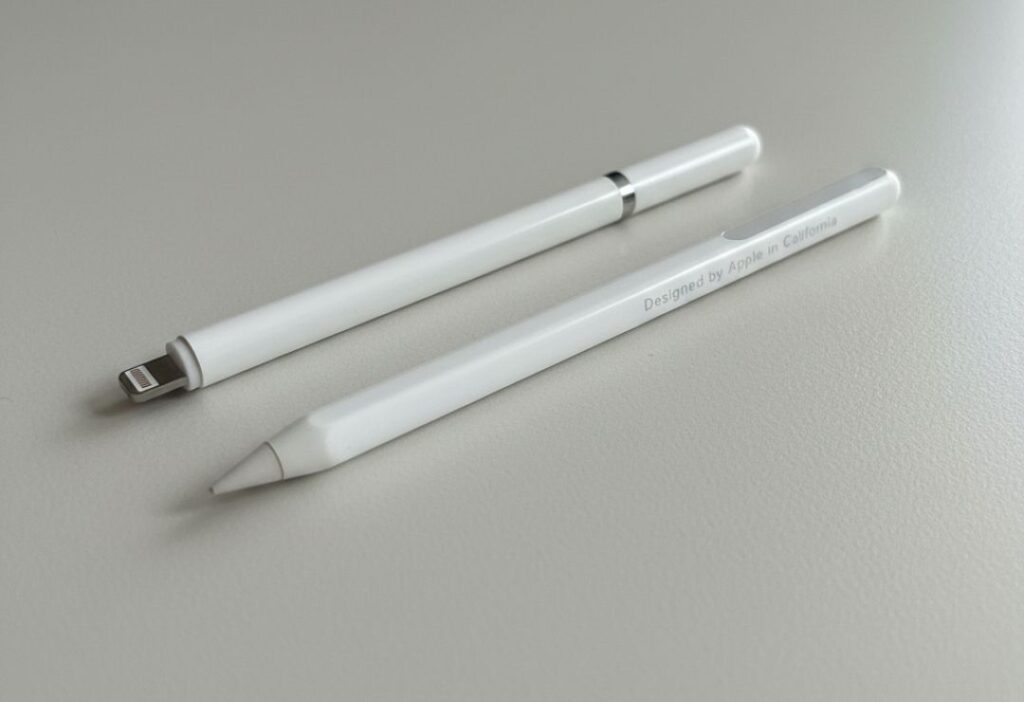
Apple Pencil is a special pen made by Apple for iPads. It lets you write, draw, or point on the screen with great accuracy. It knows how hard you press and if you tilt it, so shading looks natural.
There are different versions: 1st generation, 2nd generation, USB-C, and the newest Pro model. Each one connects a bit differently, but all feel smooth to use.
Why use it? Your finger works, but Pencil gives better control for detailed work like sketching or handwriting notes.
Apple Pencil Compatibility: Which Pencil Works With Which iPad?
Not every Apple Pencil works with every iPad. You need to match them right to avoid problems.
Here’s a simple list:
- Apple Pencil Pro (newest, with extra features like squeeze and haptic feedback): Works with iPad Pro (M4 and later), iPad Air (M2 and later), iPad mini (A17 Pro and later). Needs iPadOS 17.5 or newer.
- Apple Pencil (2nd generation): Works with older iPad Pro, iPad Air (3rd gen and up), iPad mini (5th gen and up). It sticks magnetically to the side.
- Apple Pencil (USB-C): Works with most recent iPads that have USB-C ports, like iPad (10th gen), iPad Air, iPad Pro, iPad mini. Good for basic use.
- Apple Pencil (1st generation): Works with older iPads like iPad (6th-9th gen), some iPad Pro models with Lightning port.
To check your iPad: Go to Settings > General > About. Look at the model name.
Use the right Pencil to get full features like pressure sensitivity.
How to Connect Apple Pencil to iPad (Step-by-Step Guide)
The steps change based on your Pencil type. Make sure your iPad is on and updated.
For Apple Pencil (1st generation):
- Remove the cap from the end of the Pencil to show the Lightning connector.
- Plug the Pencil straight into your iPad’s Lightning port (or use the USB-C adapter if your iPad has USB-C).
- A “Pair” button pops up on screen. Tap “Pair”.
- Wait a few seconds. It’s connected!
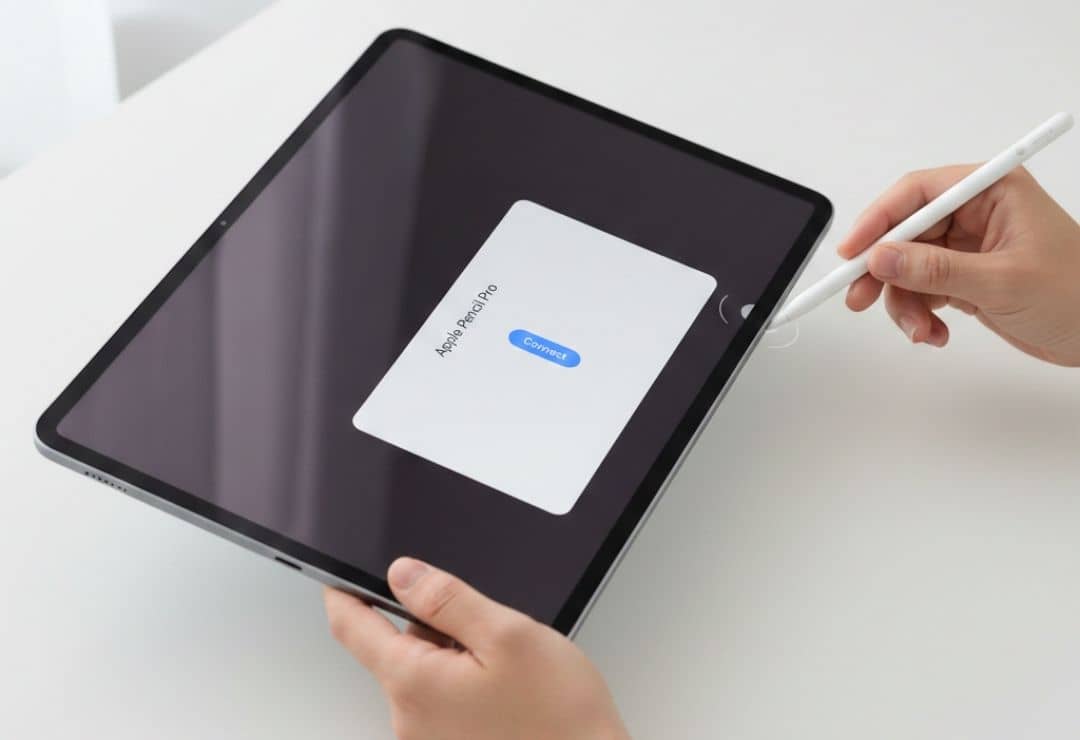
For Apple Pencil (2nd generation) or Apple Pencil Pro:
- Place the Pencil on the side of your iPad (magnetic area – usually the right side).
- It sticks automatically.
- A “Connect” or “Pair” message appears. Tap it.
- The Pencil pairs and starts charging too.
For Apple Pencil (USB-C):
- Slide open the cap on the Pencil to show the USB-C port.
- Use a USB-C cable to connect it to your iPad’s USB-C port.
- Tap “Pair” when the pop-up shows.
That’s it! Test by opening the Notes app and drawing.
How to Check If Apple Pencil Is Connected
Want to know if it’s working?
- Go to Settings > Bluetooth.
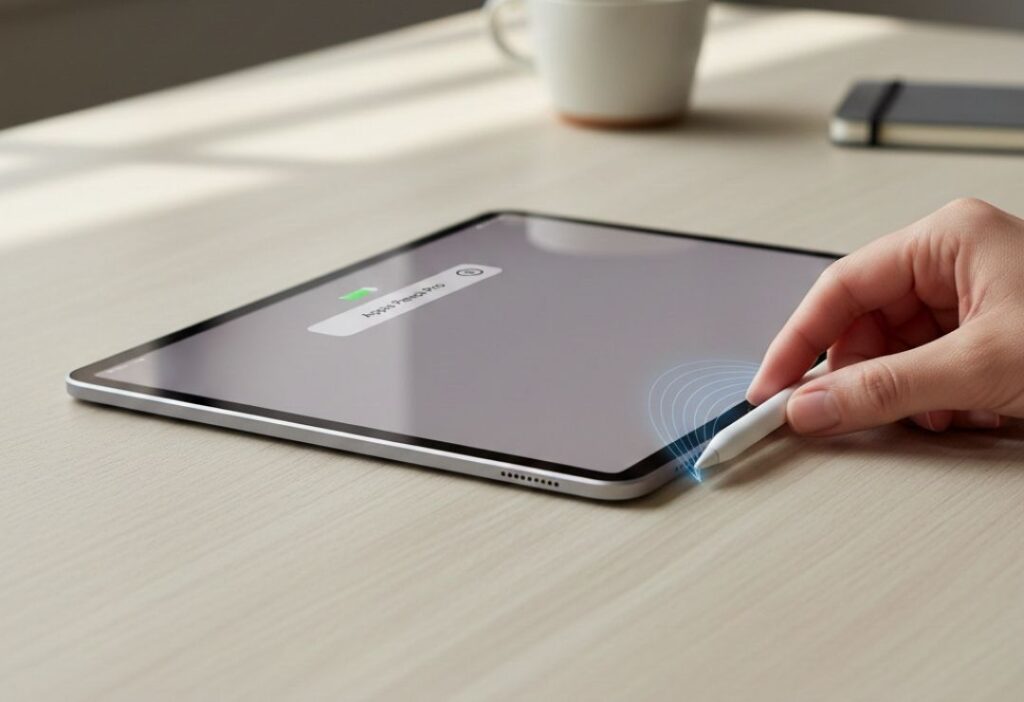
- Look under “My Devices”. Your Apple Pencil should show as “Connected”.
- For some models, swipe down from top-right to see battery widget – Pencil battery appears if connected.
Or open Notes and draw. If it works, you’re good!
Apple Pencil Not Connecting? Common Problems & Easy Fixes
Sometimes it doesn’t pair. Here are simple fixes for Apple Pencil not connecting:
- Make sure Pencil has charge (plug it in for a minute).
- Restart your iPad (hold power button, slide to power off, then turn on).
- Forget the device: Go to Settings > Bluetooth, tap “i” next to Pencil, choose “Forget This Device”. Then pair again.
- Remove any thick case or cover from iPad.
- Check Bluetooth is on.
- For 1st gen, clean the connector.
Most times, re-pairing fixes it.
How to Disconnect or Reconnect Apple Pencil
To disconnect: Go to Settings > Bluetooth, tap “i” next to Pencil, then “Forget This Device”.
To reconnect: Just follow the pairing steps again. It remembers after first time.
Why do this? If switching Pencils or fixing issues.
Apple Pencil Charging Tips for Better Connection
A low battery can cause connection problems.
- 2nd gen and Pro: Attach to side – charges wirelessly.
- USB-C: Plug cable into Pencil and iPad.
- 1st gen: Plug into iPad or use adapter.
Keep it charged for smooth use. Low battery might make it disconnect.
Common Mistakes to Avoid While Connecting Apple Pencil
- Using wrong Pencil for your iPad.
- Forgetting to remove cap (1st gen).
- Not waiting for “Pair” button.
- Thick cases blocking magnetic connection.
- Low battery during pairing.
Avoid these, and it connects fast.
Tips to Use Apple Pencil Better After Connecting
- Turn on Scribble in Settings > Apple Pencil (handwriting turns to text).
- Use tilt for shading in drawing apps.
- Double-tap (on 2nd gen/Pro) to switch tools.
- Hover (on some models) to see where it will touch.
Practice in Notes or free drawing apps.
Future of Apple Pencil & iPad Accessories
Apple keeps improving Pencil. Newer ones add squeeze gestures and better feedback. Future might bring even more smart features with AI.
iPads get better screens and chips for smoother drawing. Accessories like cases with Pencil holders help too.
FAQs – How to Connect Apple Pencil to iPad
What iPads support Apple Pencil?
Many do, but match the Pencil to your iPad model. Check Apple’s site or Settings for your model.
Why is my Apple Pencil not pairing?
It could be low battery, Bluetooth off, or wrong connection method. Restart and try again.
Do I need Bluetooth to connect Apple Pencil?
Yes, all Apple Pencils use Bluetooth for pairing.
Can I use Apple Pencil without charging?
No, it needs some battery. Charge first if it’s dead.
Does Apple Pencil work on all iPads?
No, only specific models. Older iPads may need 1st gen, newer need Pro or USB-C.
Conclusion
Now you know how to connect Apple Pencil to iPad easily. Follow the steps for your Pencil type, check compatibility, and fix common issues quickly.
It’s a great tool for creativity and work. Try it today – open Notes and start drawing! If you follow this guide, you’ll have no trouble. Enjoy your Apple Pencil!