Resetting your Apple Watch means making it fresh and new again. It removes all your data, apps, photos, and settings. People often need to know how to reset Apple Watch when the device has problems, like freezing, slow performance, or not connecting properly to the iPhone.
This can also help if your Apple Watch is not responding to touches. Or, you might want a factory reset Apple Watch before selling it or giving it to someone else. This simple guide explains everything in easy words. It works for all models, including the latest ones in January 2026.
As of January 2026, the current software is watchOS 26.2. The newest Apple Watch models are Series 11, SE 3, and Ultra 3.
When Should You Reset Your Apple Watch?
Reset your Apple Watch in these cases:
- The screen freezes or the watch stops responding.
- Apps crash a lot or open slowly.
- Battery drains very fast, even after charging.
- It won’t connect to your iPhone or Bluetooth devices.
- You see error messages often.
- You plan to sell, trade, or give away the watch.
- You want to start over with a clean device.
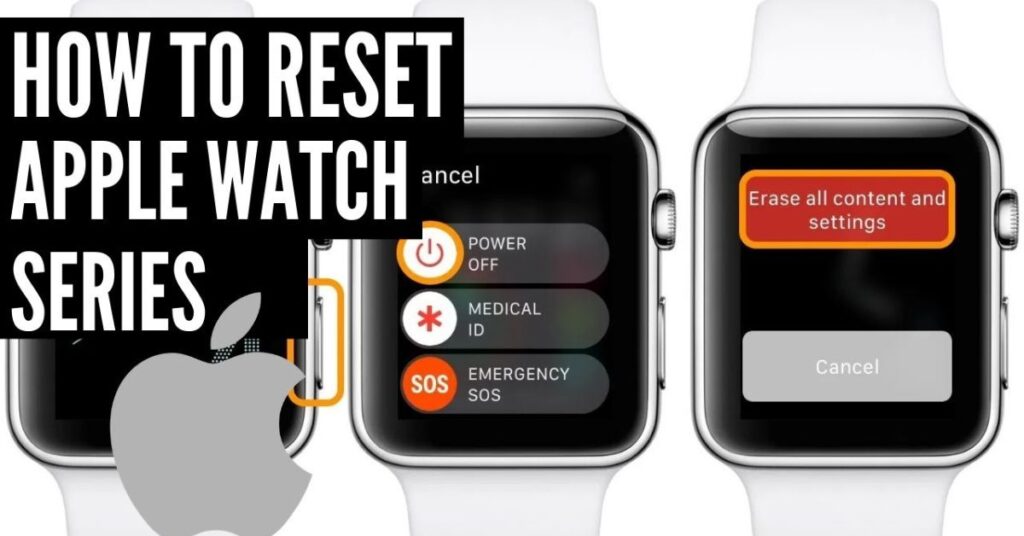
Before resetting, try easier fixes. First, restart the watch normally. Press and hold the side button until the power off slider appears. Slide it to turn off, then turn it back on.
If that doesn’t work, force restart. Hold the side button and Digital Crown (the round button) together for at least 10 seconds. Keep holding until you see the Apple logo.
Many problems go away with a restart. Only reset if these don’t help.
Things to Do Before You Reset
Resetting erases everything. You can’t get data back without a backup.
Your Apple Watch backs up automatically to your iPhone when they are close and the watch is charging. To check:
- Open the Apple Watch app on your iPhone.
- Tap My Watch, then General, then About.
Look for the backup date.
Also important: Activation Lock. This is a safety feature. It links the watch to your Apple ID. After reset, you need your Apple ID password to set it up again.
If selling the watch, unpair it with iPhone to remove Activation Lock.
Charge the watch to at least 50%. Keep it on the charger during some reset steps if needed.
If your watch has cellular, decide if you want to keep the plan.
Remove any cards from Apple Pay on the watch.
How to Reset Apple Watch Using Your iPhone (Best Way)
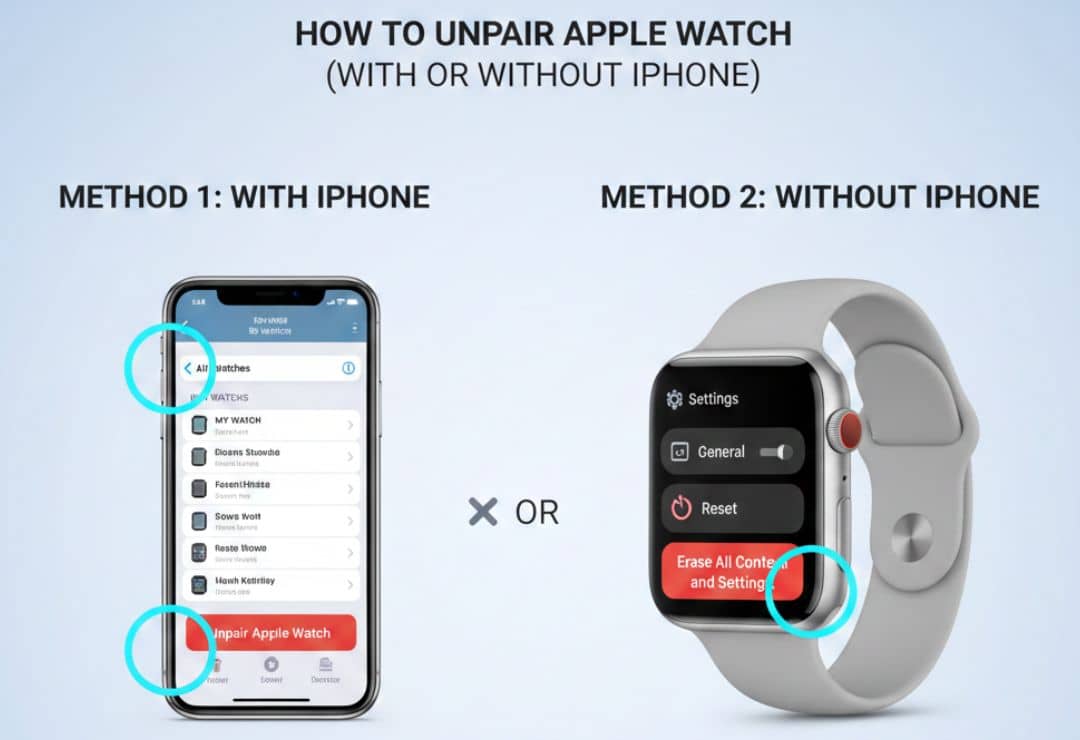
This is the recommended way to reset Apple Watch. It’s called unpair and reset Apple Watch. It makes a backup, erases the watch, and removes Activation Lock.
Steps:
- Put your Apple Watch on its charger.
- Keep your iPhone and watch close together.
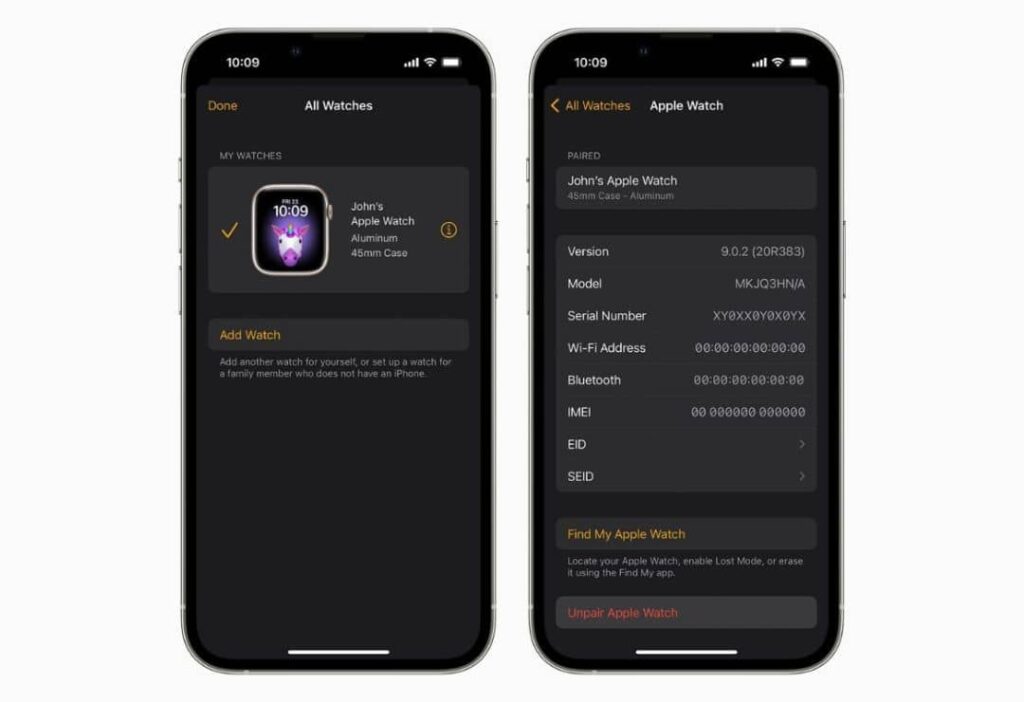
- Open the Apple Watch app on your iPhone.
- Tap the My Watch tab at the bottom.
- Tap All Watches at the top.
- Tap the info (i) button next to your watch name.
- Tap Unpair Apple Watch.
- Confirm by tapping again.
- If asked, enter your Apple ID password to turn off Activation Lock.
- For cellular models, choose to keep or remove your cellular plan.
The iPhone will back up your watch first. Then it erases everything. When done, the watch shows the hello setup screen.
This is perfect for most people because it’s safe and easy.
How to Reset Apple Watch Without iPhone
Sometimes you can’t use your iPhone. Maybe it’s broken or not nearby. You can reset Apple Watch without iPhone directly on the device.
This erases data but does NOT remove Activation Lock. You’ll need your Apple ID later to set it up.
Steps:
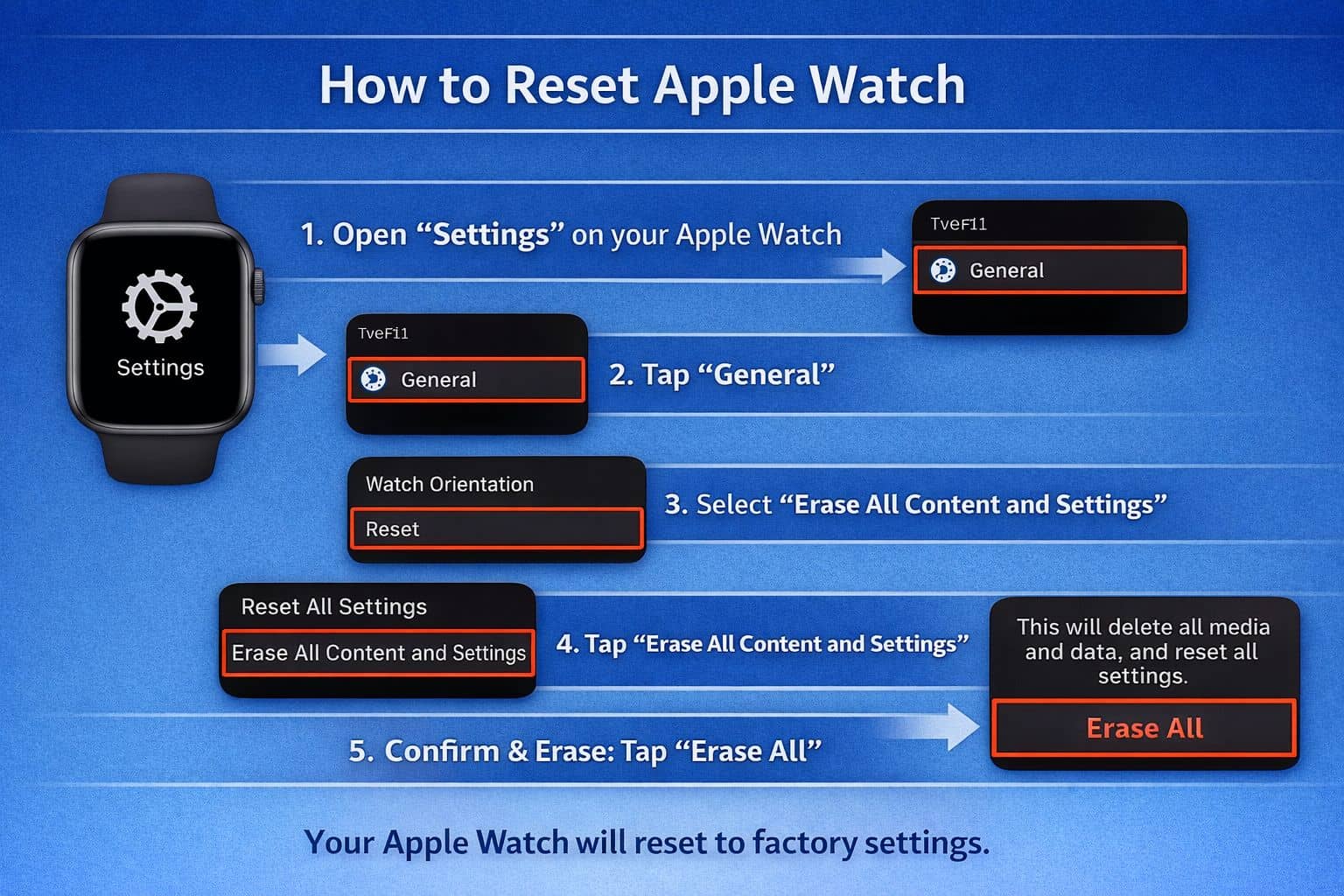
- Open the Settings app on your Apple Watch (gear icon).
- Scroll and tap General.
- Scroll down and tap Reset.
- Tap Erase All Content and Settings.
- If you have a passcode, enter it.
- If it has cellular, choose to keep or remove the plan.
- Confirm by tapping Erase All.
The watch will restart like new.
Use this only if needed. The iPhone way is better.
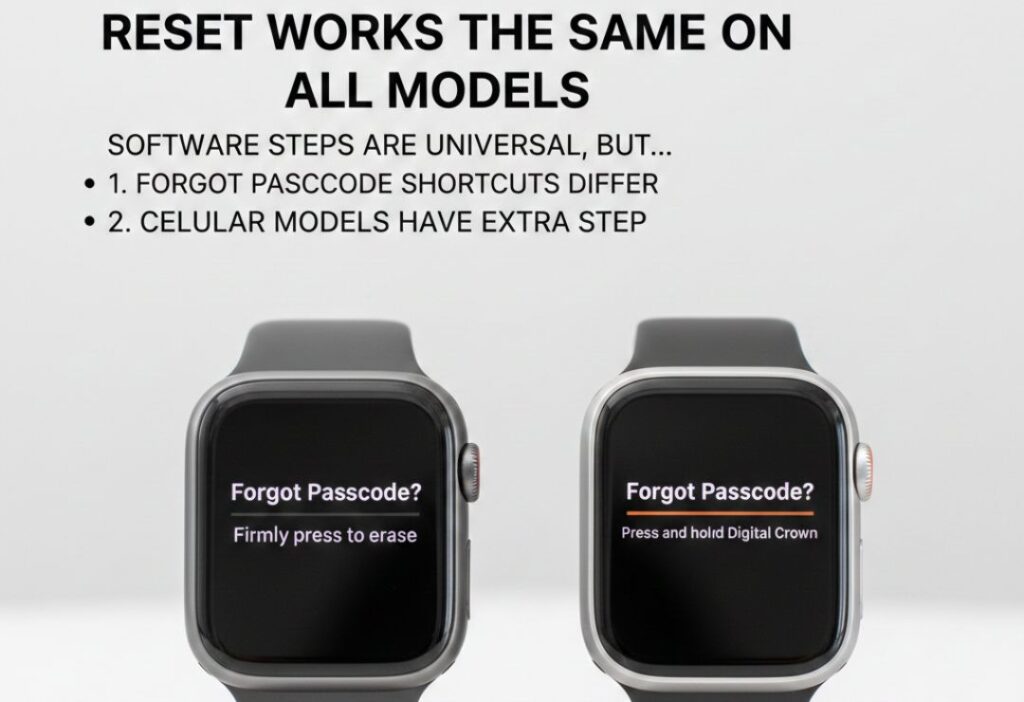
If you forgot your passcode:
- Put the watch on its charger.
- Press and hold the side button until sliders appear.
- Press and hold the Digital Crown until you see Erase all content and settings.
- Tap Reset, then tap again to confirm.
How to Factory Reset Apple Watch for Selling or Giving Away
Factory reset Apple Watch means a complete erase. Always use the iPhone method for this.
Unpairing from iPhone does a factory reset and removes Activation Lock. The new owner can set it up easily without your Apple ID.
After unpairing:
- Go to iCloud.com on a computer.
- Sign in with your Apple ID.
- Go to Find My.
- Select your watch and remove it if it shows up.
This makes sure everything is clean.
Tell the buyer to check for the setup screen. If it asks for your Apple ID, it’s still locked.
Reset Works the Same on All Models
Good news! The steps to reset Apple Watch are almost the same for every model.
Current models (January 2026):
- Apple Watch Series 11: The main one with advanced features.
- Apple Watch SE 3: Cheaper but still great.
- Apple Watch Ultra 3: Big and tough for sports.
All run watchOS 26.2. The menus look the same.
Older models like Series 10 or earlier work the same way too.
No big differences. Just follow the steps above.
Common Problems and Fixes When Resetting
Resetting usually works fine, but sometimes issues happen. Here are common ones and easy fixes:
- The reset stops or gets stuck: Keep the watch on charger. Make sure battery is high. Try again.
- Forgot passcode: Use the charger method with Digital Crown as above.
- Can’t connect during unpair: Restart iPhone and watch. Check Bluetooth and Wi-Fi are on.
- Activation Lock won’t turn off: Make sure you enter the correct Apple ID password. If forgotten, reset it at iforgot.apple.com.
- Watch shows red exclamation mark after reset: It needs recovery. Connect to iPhone and follow on-screen steps.
- No backup found: Next time, pair regularly to make backups.
If nothing works, visit an Apple Store or contact Apple Support online.
Tips After Resetting Your Apple Watch
After you reset Apple Watch, it’s like a brand new device.
To set it up:
- Turn on the watch.
- Bring it close to your iPhone.
- Follow the pairing steps on iPhone.
- Choose to restore from backup to get your data back.
- Or set up as new.
After setup:
- Update to the latest watchOS (right now 26.2).
- Set a strong passcode.
- Add your cards to Apple Pay again.
- Download your favorite apps.
- Customize watch faces and notifications.
Keep your watch and iPhone updated for best performance.
Simple FAQs About How to Reset Apple Watch
Will resetting delete all my data?
Yes, it erases everything. But if you have a backup, you can restore most data.
Can I reset without losing data?
No. Reset always erases. Backup first!
What if my Apple Watch is not responding at all?
Try force restart first. Then use the on-watch reset.
How to factory reset Apple Watch without passcode?
Put on charger, hold side button, then hold Digital Crown to erase.
Does reset Apple Watch without iPhone remove Activation Lock?
No. You still need Apple ID to set up again.
How long does reset take?
Usually 5-15 minutes, depending on the model.
Can I reset an old Apple Watch?
Yes, same steps work on older models too.
Future Updates
Apple improves watchOS every year. watchOS 26 has new features like better health tracking, sleep score, and Workout Buddy.
In 2026, we might see watchOS 27 with even smarter features. Reset steps probably stay similar, but easier with new tools.
Always update your watch for security and new ways to stay healthy.
Conclusion
You now know exactly how to reset Apple Watch in easy steps. The best way is using your iPhone for unpair and reset. It keeps things safe and makes a backup.
Remember to prepare first and charge the watch. This guide works for all models like Series 11, SE 3, and Ultra 3.
Resetting can fix many problems and make your watch feel new. If you have questions, Apple Support is always there to help. Enjoy your Apple Watch!