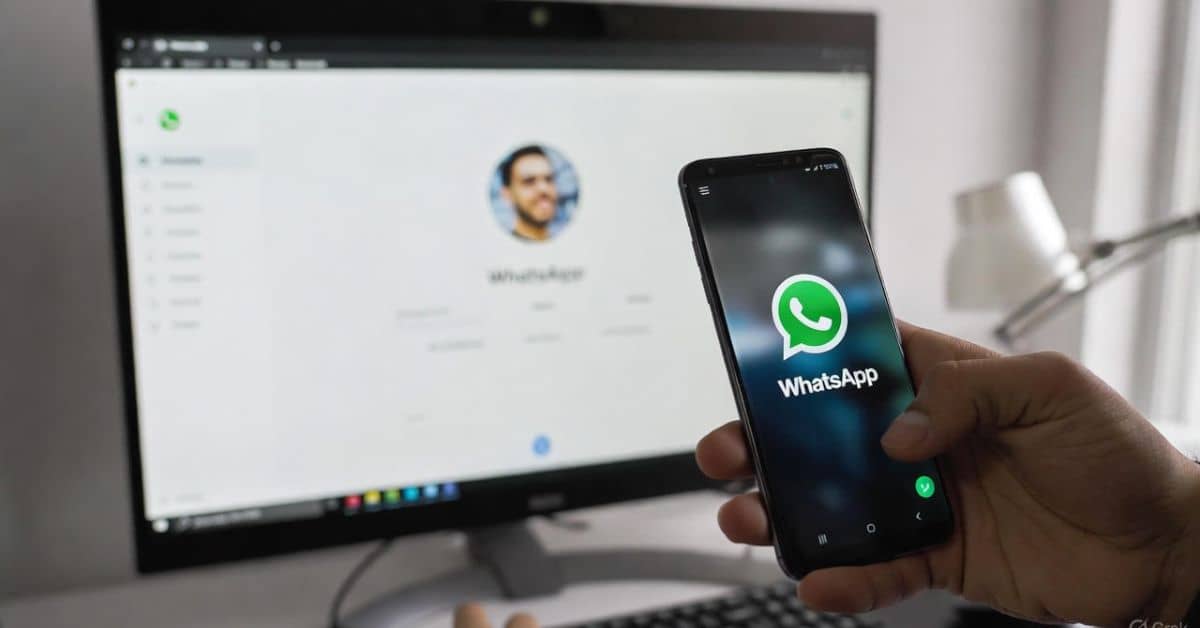
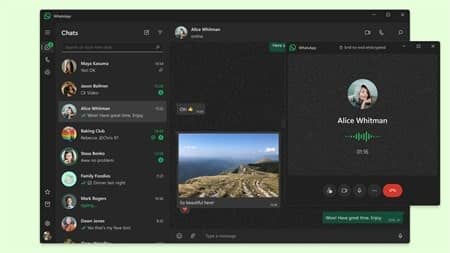

Method 1: Use WhatsApp Web (Best for High Quality, No Screenshot Needed on PC)
Table of Contents
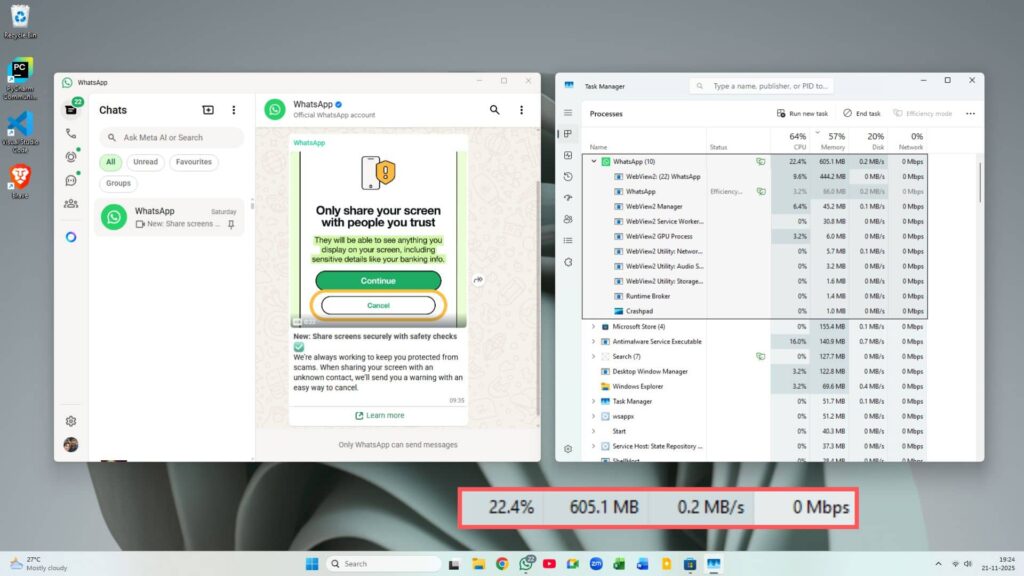
ToggleWhatsApp Web (or the desktop app) doesn’t have the same screenshot restrictions as the mobile app. This is one of the easiest and highest-quality ways.
Steps:
- Open a web browser on your computer and go to web.whatsapp.com.
- On your phone, open WhatsApp > Settings > Linked Devices > Link a Device, and scan the QR code on the screen.
- Once logged in, click on the contact or chat whose profile picture you want.
- Click on their profile picture at the top to enlarge it.
- Right-click the enlarged image and select Save image as… (or similar option). Save it to your computer.
On mobile browsers, you can request desktop mode and long-press to save, but a computer is easier for better quality.
This method gives you the full-resolution version visible in WhatsApp without compression loss from screenshots.
Method 2: Screenshot the Preview Popup (Quick on Android)
On Android, you can bypass the full-view screenshot block by capturing the smaller preview popup.
Steps:
- Open WhatsApp on your Android phone.
- Go to the chat with the person.
- Tap their small profile picture at the top of the chat (or in the chat list).
- A popup will appear with a larger preview, name, and options like Message, Call, etc.
- Quickly take a screenshot (usually Power + Volume Down).
- Open the screenshot in your gallery, crop out the extra parts, and save the profile picture.
This works reliably on Android in 2025. On iOS, the popup is smaller and screenshot restrictions may apply more strictly, so Method 1 or 3 is better.
The quality is decent but not as high as Method 1.
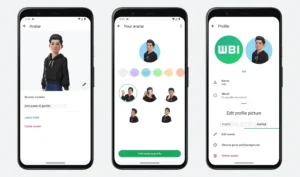
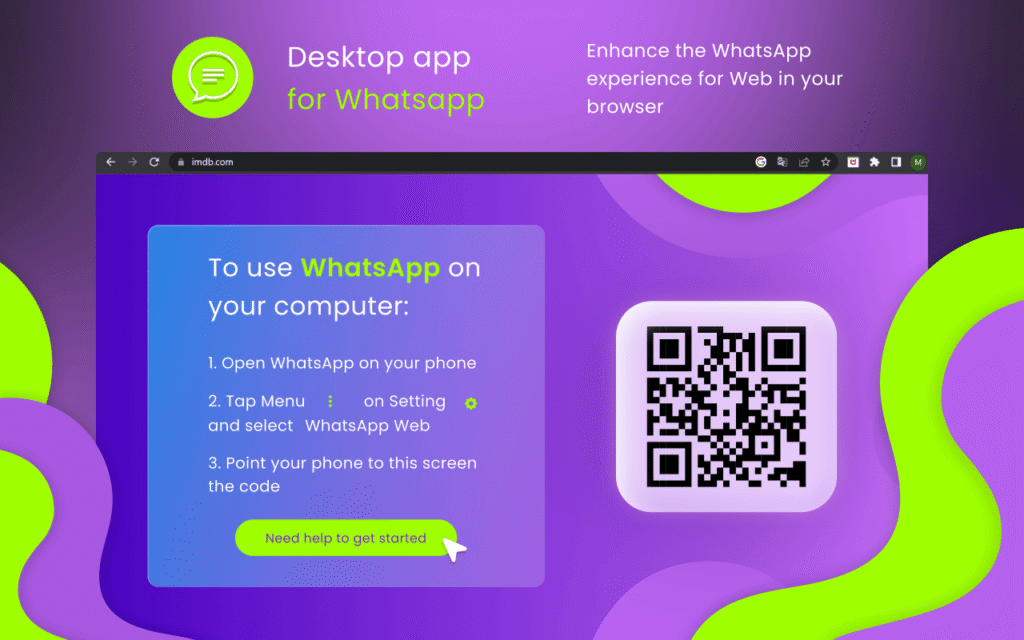
Method 3: Screenshot on WhatsApp Web/Desktop (Universal Fallback)
If you prefer screenshots or are on a larger screen:
Steps:
- Log into WhatsApp Web as in Method 1.
- Open the contact’s profile and enlarge the picture.
- Take a screenshot of your entire screen (Windows: Win + Shift + S; Mac: Shift + Command + 4).
- Crop the image to just the profile picture and save it.
This avoids mobile restrictions entirely and works on any device linked to WhatsApp Web.
Bonus Notes
- If the profile is hidden: If the person set their profile photo privacy to “My Contacts” and you haven’t saved their number (or vice versa), or “Nobody,” you won’t see it at all—no method will work.
- Group profile pictures: These can often be saved directly via screenshot in the group info, as restrictions are looser.
- Online tools: Some websites claim to download public DPs by entering a phone number, but avoid them—they pose privacy risks and may violate WhatsApp’s terms.
- WhatsApp compresses all profile pictures, so you’ll never get the original ultra-high-res version the user uploaded.
These methods are tested and working as of late 2025. The best advice? Just ask the person to send you the photo they’ll appreciate the respect for their privacy! If you have questions, drop a comment below.