Keeping your Google Play Store updated is essential for a smooth Android experience. The Play Store is the gateway to millions of apps, and regular updates ensure you get the latest features, security patches, and bug fixes. If you’re wondering how to update Google Play Store, this guide covers both automatic and manual methods to keep things running efficiently.
Many users overlook Play Store updates, leading to issues like app download errors or outdated interfaces. By following simple steps, you can avoid these problems and enjoy a seamless app ecosystem. Whether you’re on a new device or an older one, updating is straightforward and beneficial.
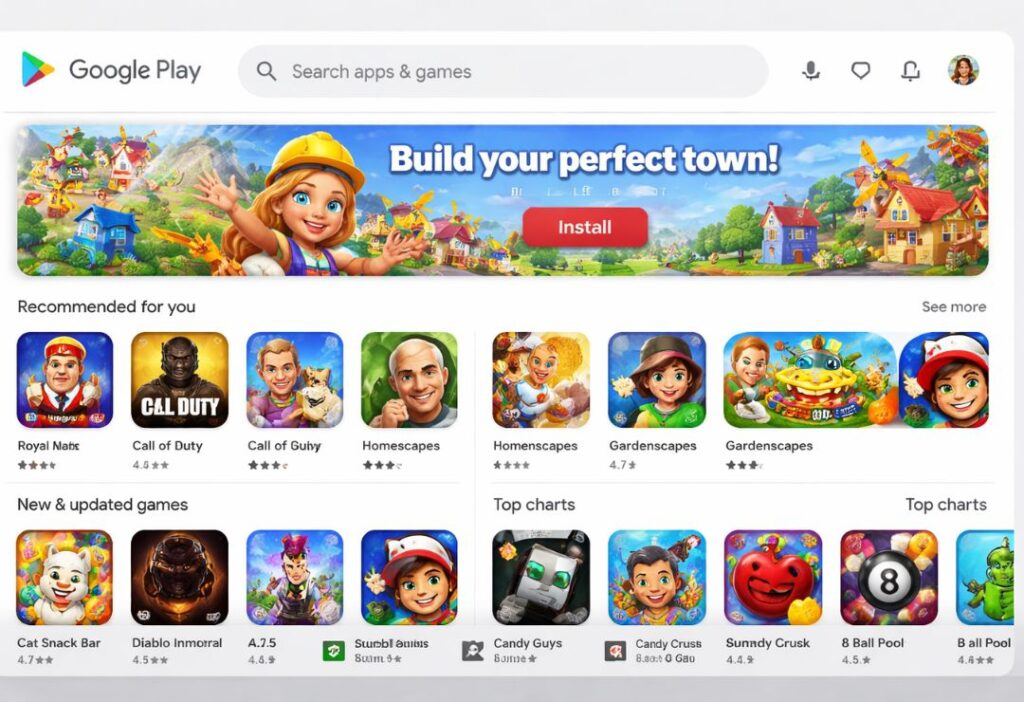
Why It Is Important to Update Google Play Store
Updating the Google Play Store isn’t just about new looks; it’s crucial for security. Each update often includes fixes for vulnerabilities that could expose your device to risks. Without the Google Play Store latest version, you might miss out on enhanced protection against malware.
Performance also improves with updates. New versions optimize app downloads, making them faster and more reliable. This means less waiting time and fewer crashes during app installations.
Moreover, updates bring compatibility with the latest Android features. If your phone runs a newer OS, an outdated Play Store could cause compatibility glitches, affecting your overall user experience.
How to Update Google Play Store Automatically
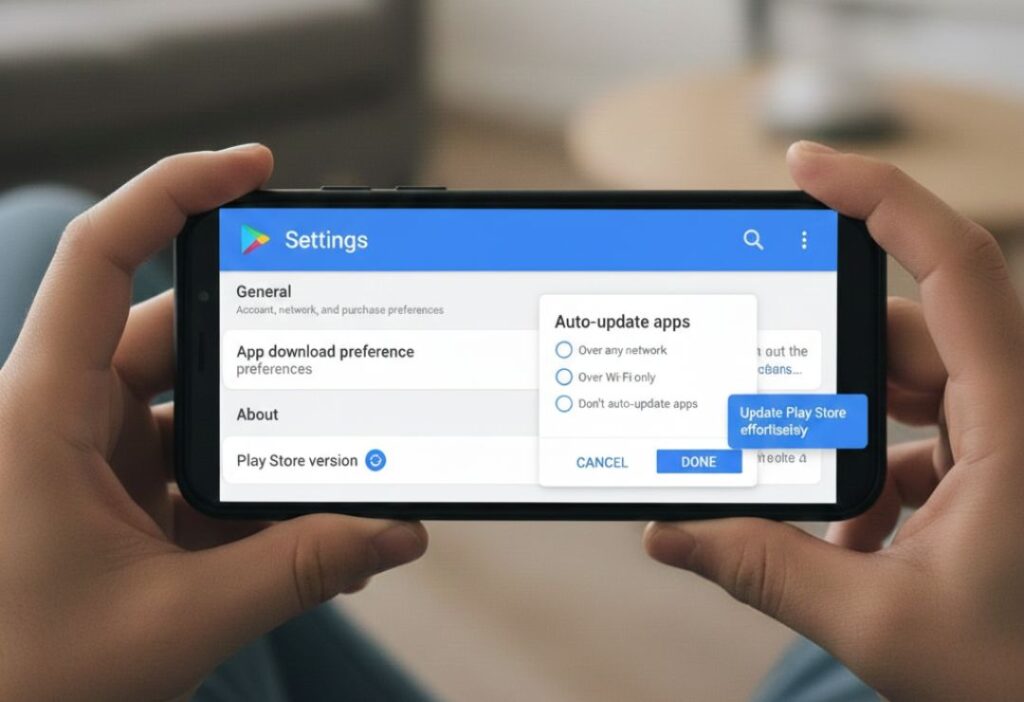
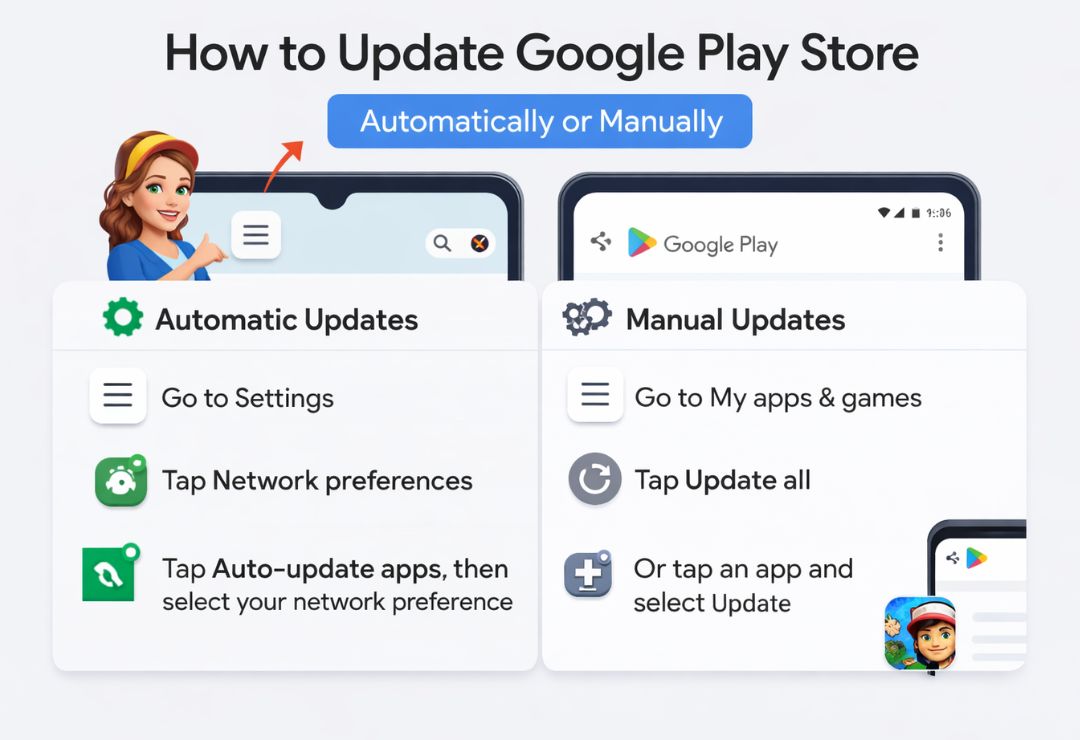
The easiest way to handle updates is through automatic settings. This method ensures your Play Store stays current without manual intervention. Here’s how to set up Google Play Store automatic update.
First, open the Google Play Store app on your Android device. Tap on your profile icon in the top right corner. From the menu, select “Settings” and then “About.”
Under the “Play Store version” section, you’ll see an option to update. But for automatic updates, go back to Settings and choose “Network preferences.” Enable “Auto-update apps” to include the Play Store in background updates.
- Ensure your device is connected to Wi-Fi for large updates.
- Check battery levels to avoid interruptions.
- Restart the app if updates don’t apply immediately.
This approach saves time and keeps everything hassle-free.
How to Update Google Play Store Manually (APK Method)
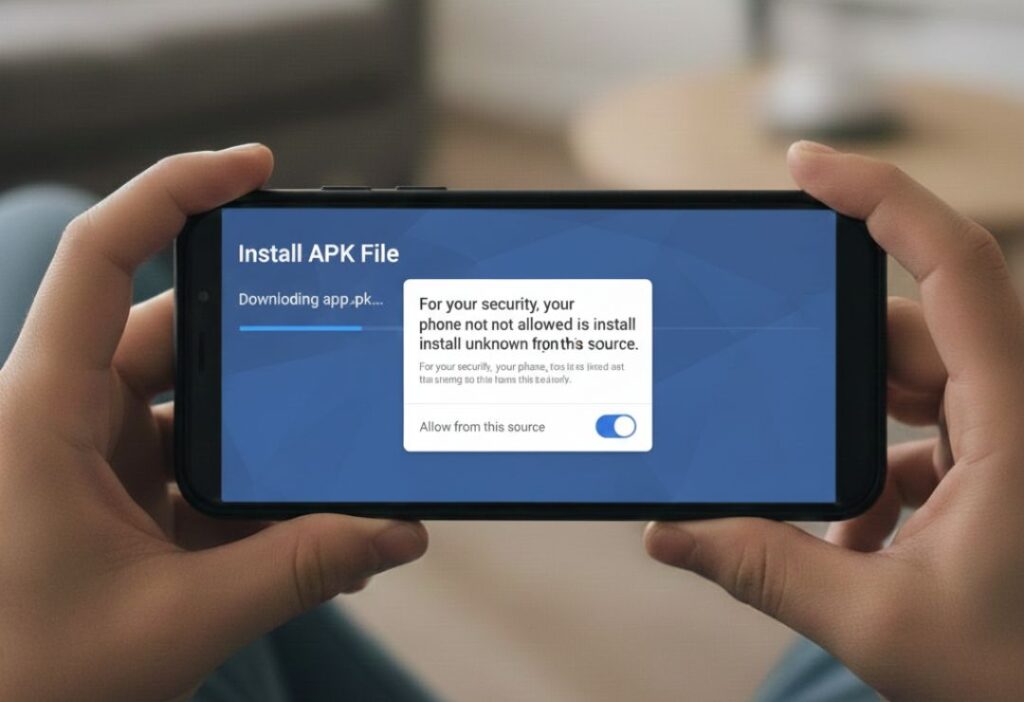
If automatic updates fail, you can update Google Play Store manually using an APK file. This method is useful when the app store itself won’t update through official channels. Always download from trusted sources to avoid risks.
Start by checking for updates within the app. Open Play Store, go to Settings, and tap “Play Store version.” If it says “Google Play Store is up to date,” but you suspect otherwise, proceed to APK installation.
To update Google Play Store manually, visit a reliable site like APKMirror. Search for “Google Play Store update APK” and download the latest version compatible with your device.
- Enable “Unknown sources” in your phone’s security settings.
- Use a file manager to locate the downloaded APK.
- Tap to install, and follow on-screen prompts.
After installation, restart your device for changes to take effect. Remember, sideloading APKs carries some risks, so verify the file’s integrity with antivirus software.
Safety tips include sticking to well-known APK providers and avoiding suspicious links. This method ensures you get the Google Play Store latest version even in restricted networks.
How to Check the Current Google Play Store Version
Knowing your current version helps diagnose update issues. To check, launch the Play Store app and tap your profile icon. Navigate to Settings and scroll to “About.”
Here, you’ll find the “Play Store version” listed. Compare it with the official Google release notes online to see if you’re on the Google Play Store latest version.
If it’s outdated, trigger an update by tapping the version number multiple times. This often prompts a manual check. Regularly verifying this keeps you informed about your app store’s status.
Google Play Store Not Updating? Common Problems and Solutions
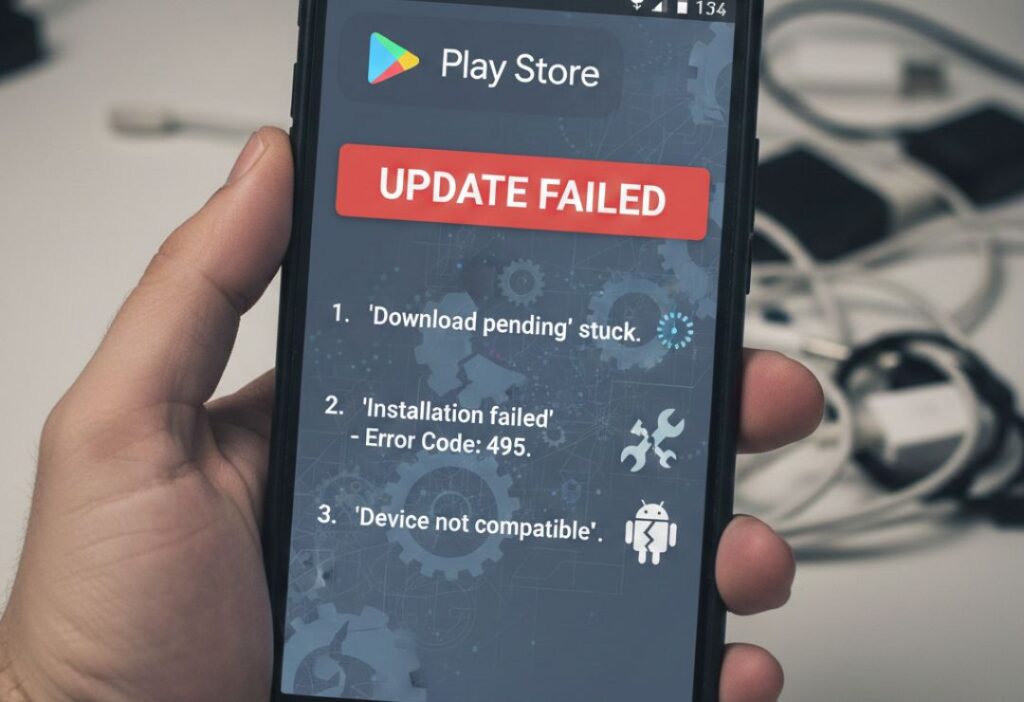
Sometimes, the Google Play Store not updating can frustrate users. Common culprits include cache buildup, which slows down the app. Clearing cache often resolves this quickly.
To fix cache issues, go to your device’s Settings, select “Apps,” find Google Play Store, and tap “Storage.” Choose “Clear cache” and restart the app. This simple step can kickstart updates.
Storage problems arise when your device is low on space. Free up room by deleting unused apps or files. Ensure at least 1GB free for smooth operations.
Internet connection errors are another frequent issue. Switch between Wi-Fi and mobile data, or restart your router. If using VPN, disable it temporarily as it might interfere.
Other solutions include updating Google Play Services, which powers the Store. Check for system updates in your phone’s settings, as they can resolve underlying conflicts.
If nothing works, consider a factory reset as a last resort, but back up data first. These troubleshooting steps address most cases where Google Play Store not updating occurs.
How to Update Google Play Store on Older Android Devices
Older Android devices might not support the newest Play Store versions, but updates are still possible. First, confirm your OS version in Settings under “About phone.” Devices running Android 5.0 or higher usually handle updates well.
For automatic updates, follow the standard steps, but ensure compatibility. If the Play Store crashes, try clearing data instead of just cache.
Manual updates via APK are ideal for legacy devices. Download an older compatible Google Play Store update APK from trusted archives. Install carefully, as mismatches can cause instability.
Update related apps like Google Services Framework. This often fixes compatibility on aging hardware. Patience is key, as older phones process updates slower.
Benefits of Updating Google Play Store Regularly
Regular updates enhance app discovery with better recommendations. The interface becomes more intuitive, helping you find what you need faster.
Security benefits are paramount. Each update patches exploits, protecting your personal data during app transactions.
Performance boosts include faster load times and reduced battery drain. You’ll notice smoother navigation and quicker downloads.
New features like dark mode or improved search roll out with updates, enriching your experience. Staying current ensures compatibility with emerging apps.
Overall, consistent updates prevent future headaches and maximize your device’s potential.
FAQs About How to Update Google Play Store
How do I enable Google Play Store automatic update?
To enable automatic updates, open the Play Store, go to Settings, and select “Auto-update apps.” Choose over Wi-Fi to save data. This keeps your app store current without effort.
What should I do if Google Play Store not updating automatically?
If automatic updates fail, clear the app’s cache and check storage space. Restart your device and ensure a stable internet connection. Manual methods can serve as a backup.
Is it safe to update Google Play Store manually with APK?
Yes, if you download from reputable sources like APKMirror. Always scan files for malware and enable unknown sources only temporarily for safety.
How can I find the Google Play Store latest version?
Check within the app under Settings > About. Compare with Google’s official changelog online. Updates are released frequently, so verify regularly.
Why does my older device struggle with how to update Google Play Store?
Older devices may have OS limitations. Use compatible APKs and update system software if possible. Clearing app data often helps resolve compatibility issues.
Conclusion
Mastering how to update Google Play Store ensures your Android device remains secure and efficient. Whether you prefer automatic settings or manual APK installation, these methods cover all scenarios. Regular updates prevent issues like Google Play Store not updating and unlock new features.
By following this guide, you’ll maintain the Google Play Store latest version effortlessly. Stay proactive with your device’s maintenance for the best mobile experience. If problems persist, revisit the troubleshooting section for quick fixes.